

EMCD LTC and DOGE payout wallet setup
Mining LTC and DOGE on EMCD requires a separate payout address for each coin. Prepare a Litecoin address and a Dogecoin address, save each one and confirm it by email, then wait for an eligible payout.
This walkthrough uses real EMCD web screenshots to show where to click, where to paste each address and why completing setup does not mean an immediate deposit.
Prepare two addresses and match each network
Open Receive or Deposit in your wallet or exchange. Choose the native Litecoin network for LTC and the native Dogecoin network for DOGE, and copy each corresponding address separately, even if both coins are in the same app.
For an exchange, first check that deposits are enabled, mining-pool deposits are accepted, and you understand its minimum deposit and confirmation requirements. Ask the receiving service and EMCD support before proceeding if the network, extra fields or address format are unclear.
Step 1 — Open account settings and choose a coin
After signing in to emcd.io, select account settings in the left sidebar (1), then open the coin selector (2). This screenshot starts on BTC; change it to Litecoin / LTC.
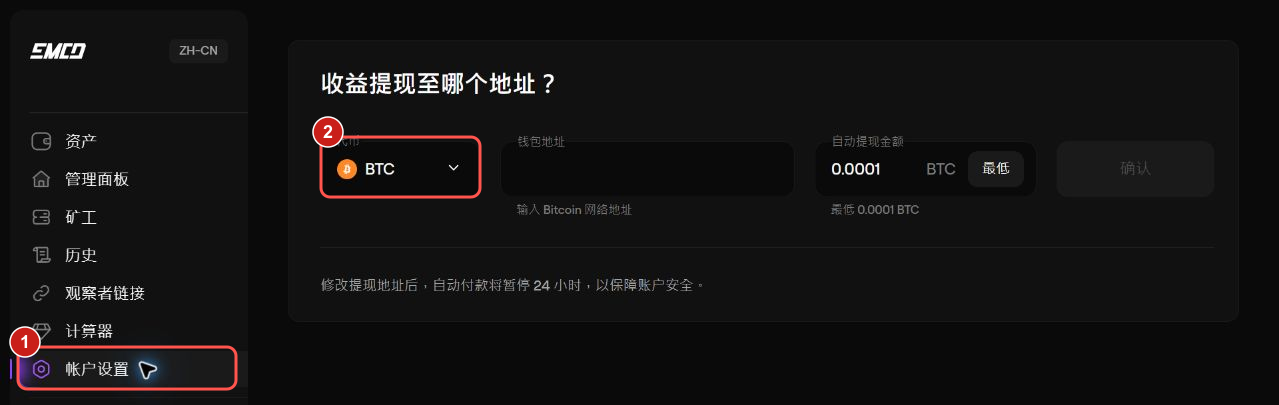 Open the full-size screenshot ↗
Step 2 — Enter your LTC address and payout threshold
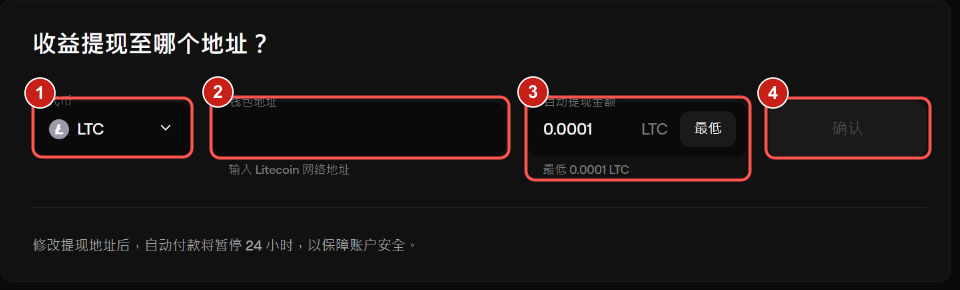
After selecting LTC, follow boxes 1 to 4. The screenshot leaves the address blank to make the field easy to identify; enter your own address when setting it up.
 Open the full-size screenshot ↗
- Check that LTC is selected and paste your native Litecoin receiving address into the wallet address field.
- Set the automatic payout amount. The screenshot shows a minimum of 0.0001 LTC. Use a higher threshold if the receiving service requires a larger deposit, allowing for any receiving fees.
- Check the full address and amount, select Confirm, then follow the confirmation link EMCD sends to your registered email address.
- Return to LTC settings and check that the address and threshold were saved.
Step 3 — Switch to DOGE and set it up separately
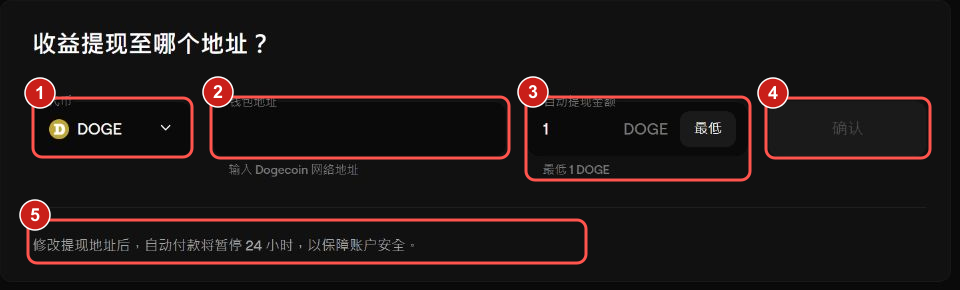
Open the coin selector again, choose Dogecoin / DOGE and paste your native Dogecoin receiving address. Completing LTC setup does not complete DOGE setup.
 Open the full-size screenshot ↗
- Check the DOGE address and threshold. The screenshot shows a 1 DOGE minimum; also meet your receiving service’s minimum deposit.
- Select Confirm, confirm this DOGE setup by email and recheck the saved settings.
Why has nothing arrived after setup?
Adding or changing an address triggers a 24-hour payout hold for that coin. After the hold ends, you still need to meet your threshold and wait for a payout batch; funds do not arrive exactly when the 24 hours expire.
Official guidance currently gives a usual daily payout window of 13:00–14:00 UTC, or 21:00–22:00 in Taiwan. Follow a different time shown in your account. Missing a batch may mean waiting for the next one, and the two coins may arrive separately.
- No payout yet: check email confirmation, the 24-hour hold, your actual threshold, payout batches and account review notices.
- A payout record without a TxID may still be in preparation. Check again after broadcast.
- With a TxID but no deposit, check the on-chain address, amount and confirmations. Contact the receiving service if enough confirmations have passed.
- If the address is wrong, stop and contact EMCD immediately. Do not assume a broadcast transaction can be cancelled or recovered.
Three checks before you finish
- The saved LTC and DOGE addresses, networks and thresholds are correct when you reopen settings.
- Both email confirmations are complete, and you know when each coin’s payout hold ends.
- After the first payout, compare each TxID with the on-chain record and your wallet deposit. Verify receipt separately from setup.
Official guidance and further reading
Check the official documents before proceeding. This guide combines public rules with the observed interface; platform and receiving-service requirements may change.
- EMCD official payouts and wallet setup
- EMCD LTC / DOGE / PEP Scrypt guide
- Read the EMCD pool profile and payout terms
- Antminer L9 specifications and earnings data
- Understand settlement versus payout
Captured on 11 November 2026 in EMCD v5.20.0 with Simplified Chinese interface labels. Red boxes and numbers are annotations; the account panel is cropped out. Button positions may change.